ON YOUR PC
Open SideDrop.
Install the Windows beta and complete assisted HTTPS setup. Keep both devices on the same reachable local network.
Beta requirements SideDrop.Get the beta
 A short trip for your files
Photos, videos and documents, directly between your own devices on the same Wi-Fi.
Start on your Windows PC.
Your iPhone or iPad connects in Safari after setup.
Windows 11 x64. No iPhone app to install.
Invitation and assisted secure setup required. See beta requirements
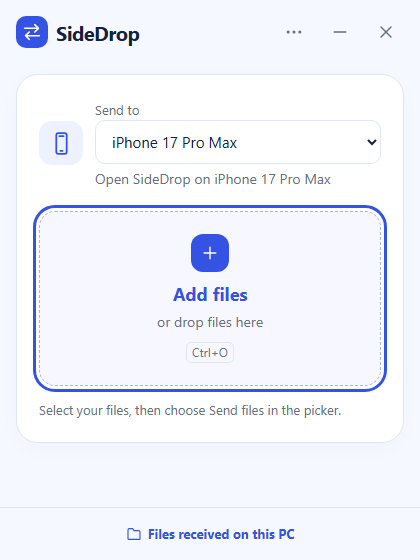
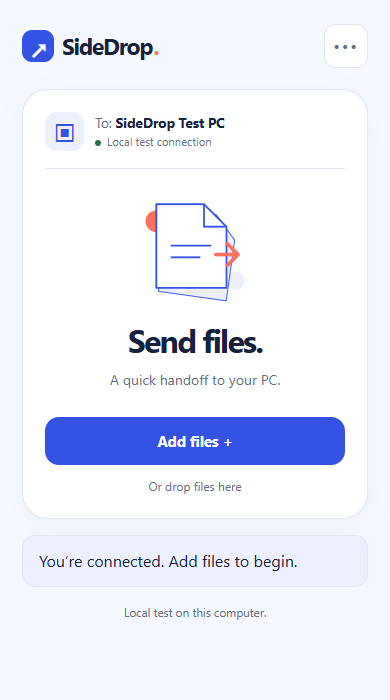
Less passing around. More passing over.
Set up once with help during the beta. Then your PC and saved Safari connection are a few taps away.
ON YOUR PC
Install the Windows beta and complete assisted HTTPS setup. Keep both devices on the same reachable local network.
Beta requirementsON YOUR PHONE
Scan the PC’s QR in Safari. Compare the code on both screens, then approve the browser on your PC.
Connection guideEITHER DIRECTION
Choose files and approve the handoff. Receiving on your phone? Keep Safari open, then choose Save to Files.
Saving on your phoneThe short way home
No upload to a cloud file locker. SideDrop’s website helps you get started; your PC handles the handoff.
File contents travel directly between Safari and your Windows PC. Setup and optional accounts use separate services.
Approve each browser and each transfer. Remembered access is easy to revoke from your PC.
The current beta allows up to eight files, 5 GiB combined. Large receives depend on the browser’s storage check.
No separate iOS app is needed. The companion opens in Safari using the QR from your configured Windows PC. This public website does not connect to your PC itself.
Both devices need a reachable local connection. Guest networks, router isolation or some workplace networks can block it. Setup and certificate renewal may require Internet access.
The Personal beta supports up to eight files with a combined limit of 5 GiB (about 5.4 GB). A browser check determines large-receive availability. There is no daily sending quota.
On Windows, use Files received on this PC. On your phone, Ready to save means a checked browser copy is available. Choose Save / Open, then complete Save to Files. SideDrop cannot confirm the final Files save.
iOS controls the media picker. If Photos does not finish handing over a video, save a local copy in Files, then use Add files → Choose Files/Browse. See the large-video guide.
iOS can suspend background pages. Keep the page visible and your device awake. A supported durable receive can recover after reopening, but background delivery and permanent browser storage are not guaranteed.
Explore the Windows beta, its current requirements and how to connect your phone.